-->
Showing posts with label pdf tools. Show all posts

0 comments


Feel powerless when PDF document refuses to be copied, edited or modified due to password protection? If so, why not try iStonsoft PDF Password Remover? It can remove the restriction effortlessly so as you can use PDF document allodially.

About Two Kinds of PDF Password
When people mention PDF pasword, we have to make clear what PDF password is referred to. Actually, there are two kinds of passcode applied to add restriction for PDF document. User Password and Owner Password. They are different.
- User Password - It is also called Open Password. This password is often created by people who generate the PDF document to protect the PDF files from opening by others. When a PDF document is protected by User Password, we have to enter the correct passcode.
- Owner Password - It is the password that set to protect the PDF files from changing by others. With an owner password, the owner can protect the PDF files from printing, copying or editing.

Bypass Password Restriction from PDF Document
- Remove User Password(Open Password) from PDF document after you have entered authorized password. Simplify the process of opening User Password protected document. And this software also protects security of PDF well because it need right passcode before decryption.
- Bypass Owner Password protection directly which means it removes restrictions on copying, printing, editing, commenting, page extraction, etc. from the input files. So you can reuse or modify any content of PDF without limitations.

Full-Featured Software in PDF Decryption
- It supports all versions of Adobe PDF document.
- Being a professional PDF password remover, it supports decrypting PDF under any encryption system including 40-bit RC4,128-bit RC4,128-bit AES decryption. That means you can remove restriction from any protected PDF document regardless of compatibility issue.
- Just remove password. It won't cause any damages to your original or decrypted PDF documents. Decrypted PDF document will keep super quality and resolution in word and images.

Brief Interface and Simple Operation
- User friendly interface allows you to remove PDF password / restrictions with just 3 simple steps: Launch - Import - Decrypt.
- Support decrypting encrypted PDF files in any language inlcuding English, German, French, Korean, Latin, Turkish, Italian, Chinese, Japanese, etc.
- Stand-alone program: Don't require any other 3rd party software(such as Adobe Reader) installed.

What's new:
- Fix a potential bug.
- Disable the function of moving files up and down.

Note: Use 'computerinnovations' as password for the rar file


author-pic About author
hiiii......, this is ajay , a chemical engineer by profession, a tech geek by passion, enjoys ethical hacking

Submit your Email Address to Get Free latest Articles/softwares Directly to your Inbox


Read More »

0 comments
Create PDF Cover PagesIn our last post we promised that we will be guiding you about making cover pages for e-books. It’s time to fulfill our promise, so shall we begin? Most of us are already aware of the importance of having an excellent cover page be it a class assignment, a term report or any other full fledge document. In today’s world of advertisements, people go for the things which look most significant, which can make them stop. We have already discussed how to make an e-book. When you are done with the content of your e-book…you have worked hard, added each and every word carefully. Now you want to bring it in the market. This is the time you need to work for your cover page.

The Paradox:

When I discussed this idea with my friend, he asked me to tell about some free PDF images which can be edited. For that time being I agreed to him but soon after I realized that there’s something missing. I would never go for any handful set of images to make my cover page. When I have written whole book on my own, I should have a special cover page, designed specifically for my e-book. In other words I rejected the approach of editing PDF images. As editing with PDF is not an easy task and most of us are non- familiar with it. We are comfortable with only reading PDF documents. So why mess up things and why not look for easily applicable options.
I then found two choices. I could either use a professional designer’s approach to make a cover page using Photoshop or GIMP .Or I could design it using MS Publisher as a home user. I won’t recommend you to go for any new design tools to make your PDF cover page rather we want a solution where we could use our creativity with the tools we are skilled at. Once the image is finalized; we can then convert it into PDF document.

Professional Designer’s Approach:   

If you are skilled at Photoshop, GIMP or any other professional designer tool, feel free to create your cover page with it. I usually save my work in .jpg, .bmp format. It’s time to convert them into PDF format. We are using the same PDF software tools which we have used earlier, so that you don’t need to download any other tool.

PDF Creator:


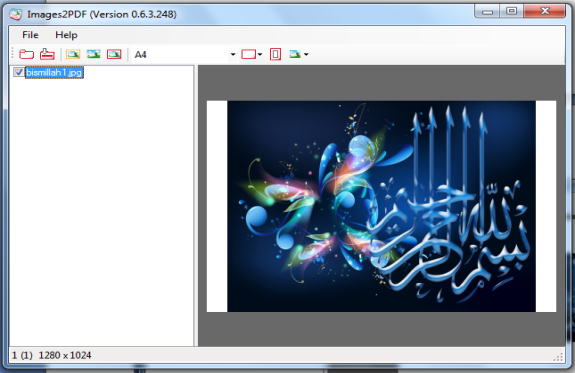
Click Start -> All Programs -> PDF Creator (Folder) -> Images2PDF (Folder) ->Images2PDF
File -> Import Images. ‘Import’ Dialog box appears. You can use the default settings or customize it.
Click Import. It will ask you to specify file.
You can see the file is added. Export it to PDF format now.
Click File -> Export to pdf. Export Window pops up and allows you to enter its properties like its title, author. Image compression options are also available.
In the ‘File’ bar click on the ‘dotted button’, it will make you specify save location and the exported file name.
Click ‘Export’.
PDF Cover PagesPDF Cover Pages
Your image is now in PDF format. You can also convert it in the same way as you create simple PDF files but that won’t allow you specify any image size or compression etc.

DoPDF: 

DoPDF also cater image files to be converted into PDF.  
Select Start -> All Programs -> DoPDF.
Specify your file and it will recognize image file by its extension.
It will provide you some options, you may use them.
Click ‘Print’.

PDF converter:

You can also convert your files to PDF format online at freepdfconvert.
Just add your source file. You may add any URL.
Click ‘Convert Your File’.
You may enter your e-mail address to receive your file via e-mail or can open or save it directly after conversion.

Home User’s Approach:

If you are satisfied with MS Office, you may prefer to use MS Publisher. It is a really good tool and provides with varieties of options. As described by its name, it is mostly used to design banners, brochures, flyers etc. 
Working with it is quite easy. All you need to do is save your file in PDF format. 
You may find yourself interested in making 3D- cover pages

What’s next?

We will be wrapping up the series in our next post InshAllah. We will discuss some miscellaneous features of PDF documents in that. You may write to us if you want to suggest the topic for next post of this series.
author-pic About author
hiiii......, this is ajay, woking as a technical engineer, a tech geek, enjoys ethical hacking

Read More »

0 comments
4 ways to create PDFLearn simple and exciting new ways to create PDF Files. We will be fist discussing why you should use PDF and then we will list 4 best software tools that will help you create a PDF document. Whether you are thinking of creating an E-book for your blog readers or thinking of converting your important information in "read only" format then I guess you must know how to convert your text file into a PDF.


Why use PDF:

PDF is an acronym for Portable Document Format. It was invented by Adobe Systems in early 1990’s.It has become a global standard for transferring documents and capturing information. PDF is based on ‘What You See Is What You Get’ idea .i.e. it is same on-screen as it is on-paper. No additional editing are required nor its print out depends on the settings of the computer. It is viewable on multiple platforms, be it Windows, Mac Os or even mobile platform of Android. The most relaxing feature is that you can secure your document by using water-marks or by protecting it through password. You can even upload it on server and restrict access to it. Digital signature, difficult to edit, sending it via mail etc and many other features justify its acceptance at international level.
Ways to create PDF document:
PDF documents are not word processing programs and normally documents created in other formats are converted into PDF. We are listing some simple ways to create PDF documents.

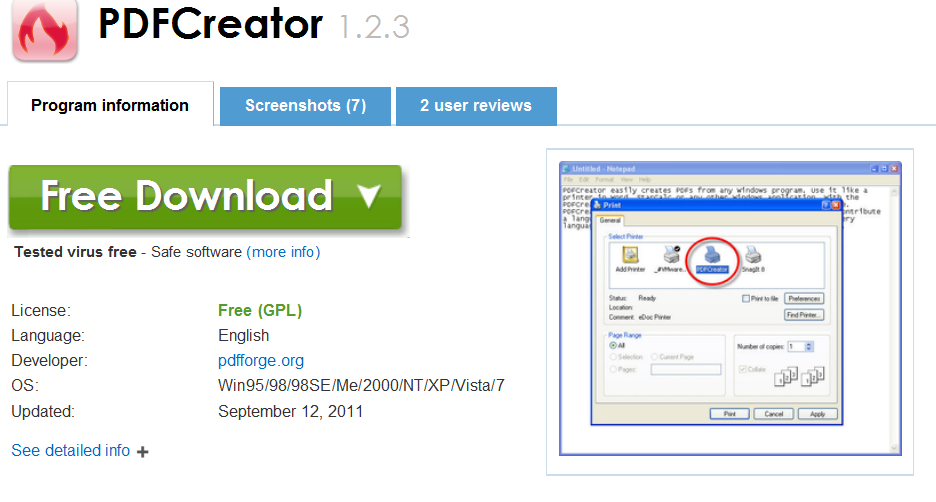
1. PDF Creator


PDF creator is a freeware and is available at http://pdfcreator.en.softonic.com/download. You can install this software to convert your existing text or word documents into PDF.PDF Creator
Installation steps are quite simple. When you click on ‘Free Download’ it asks whether you want to save or run the application. You can select any of them. It then asks if you accept the agreement and start installation process .Setup has been installed, you are now supposed to run it.
Right click on the document you want to convert.
Select Create PDF and Bitmap Files with PDF Creator.
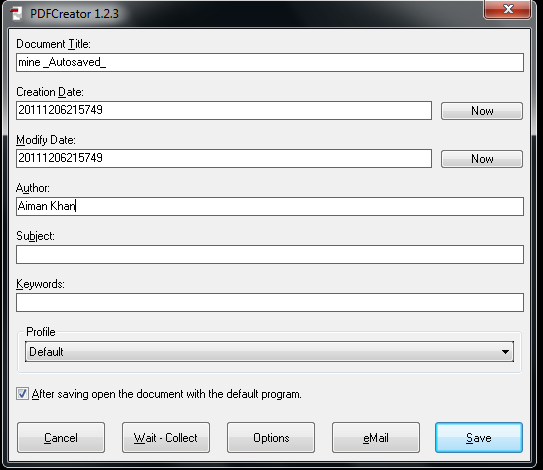
A dialog box appears informing it is necessary to set PDF creator as default printer. It is a temporary printer so no issues with it. You can easily continue.
Following dialog box appears. Click Save and specify save location.
PDF Creator settings
Document is now converted into PDF format. (I have converted a ’docx’ format into ‘pdf’).Even the highlighting is preserved. 

2. DO PDF


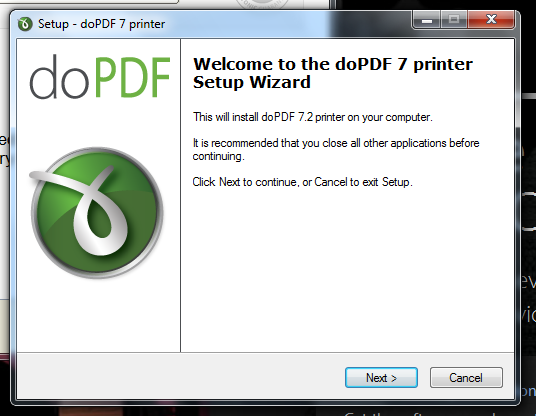
doPDF is also a free PDF creator. It also allows converting any type of printable document to PDF files. It installs itself as a virtual PDF printer. It has an upgraded version ‘novapdf’ which provides more options, but you need to pay a little for it. You can download it at www.dopdf.comDo PDF settings 


For converting a document you need to follow the given steps: 
Click Start -> All Programs -> doPDF 
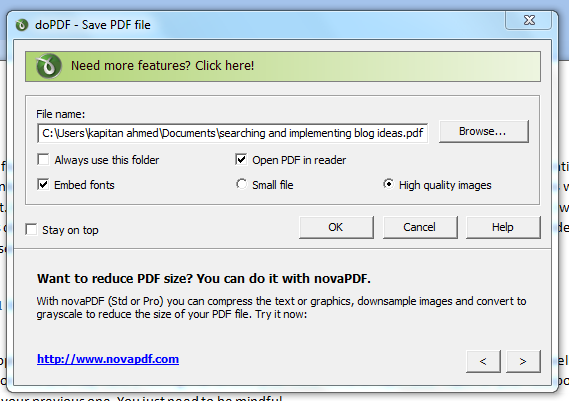
A dialog box is opened and asks you to locate the file 
Select the path and click ‘Create’. 
Specify the save location and click OK. 
Your document is created.Do PDF settingsDo PDF settings

3. Create PDF online


If you are not interested in downloading and installing softwares … we have found a way out. You can create your pdf documents online at https://www.acrobat.com/createpdf/en/home.html 

Click  convert PDF now. 
It will present you its packages. 
Subscribe to any of them. 
It will then ask your particulars. 
Once you are done with the sign up process, you can use it anytime. Since the prices are high, very few will go for this option so let’s move to the simplest one. 

4. Save Word Documents as PDF:


Yes, it is the easiest and simplest of all for home users. You can save your word documents in PDF format and if you are interested in saving text as PDF, you can do a simple trick. Copy text document into a new Microsoft Word Document and repeat the steps. 
Click File -> Save As ->PDF or XPS 
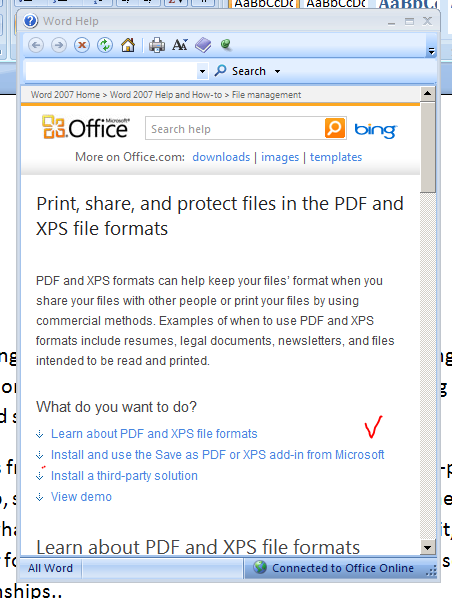
If you don’t have this option, most probably, it would be something like Save in Other Formats (I don’t have exact words, plz review).Click it. 
It will bring you to the following dialog box. 
convert word to pdfconvert ms word to pdf
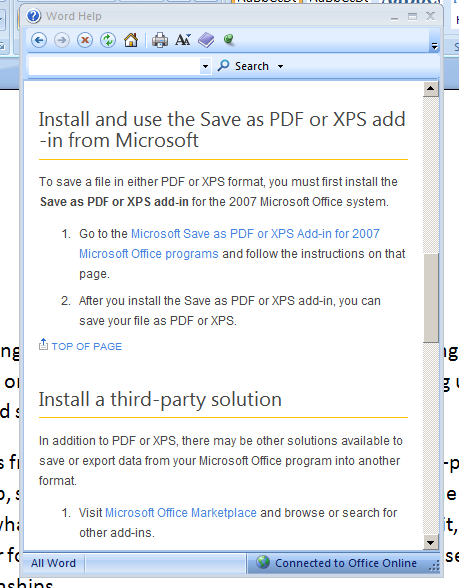
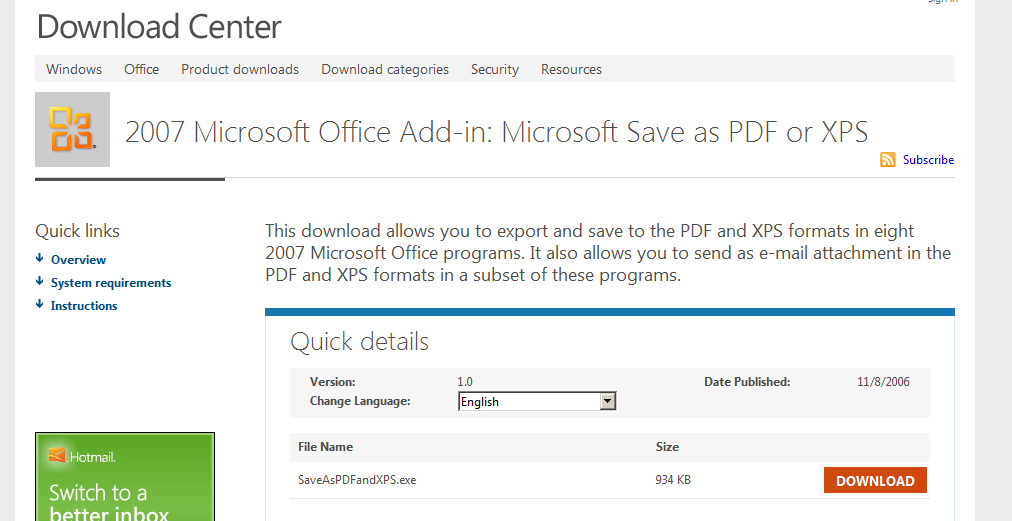
Click: Install and use the Save as PDF or XPS add-in from Microsoft. 
Next dialog box appears; click Microsoft Save as PDF or XPS Add-ins for 2007 Microsoft Office Programs. 
It will bring you to Microsoft Download Center. 
Click Download -> Accept the license. 
After installation, check your File-> Save As options again and this time you will definitely find Save As PDF or XPS.save word file as PDF
author-pic About author
hiiii......, this is ajay, woking as a technical engineer, a tech geek, enjoys ethical hacking

Read More »

0 comments
Expert Pdf

Create, edit and convert PDF documents software Avanquest Expert PDF Pro v9.0.270

Avanquest Expert PDF Specialist software is the most complete and easiest course ever in the area to create, edit and convert PDF documents is presented. This powerful software is able to create pdf documents from other formats, edit them or convert the documents to a user-identified formats. Development documents will be done by the virtual printer from any application that can print PDF output can be created. Compaction documents together, remove some of the pages are also suitable with all versions of PDF and standards, putting Watermark on documents and many of other key feature of the new version of Avanquest Expert PDF Professional gives people. This software can be totally free from websites Our Website Saqibsoft.com
Avanquest Expert PDF Pro v9.0.270

Some features of this software:

  • Convert PDF to image format and high quality setting desired.
  • compaction Yajdakrdn the various pages in a document.
  • sent to a friend via e-mail documents directly to.
  • PDF document by making virtual printer
  • capability to add photos to a PDF document
  • possible secure by putting a password
  • supports different versions of PDF.
  • Watermark on documents could put
  • a complete editor for PDF documents.
  • PDF Preview files
  • support multiple standards
  • interface with a variety of windows
  • to convert PDF to Word.

Read More »