-->
Showing posts with label windows phone. Show all posts

0 comments
After a long gap posting about windows phone, because of the mails that i was receiving mentioning me to post about HOW TO OVERCOME THIS ERROR 800c0019.....?

Have you ever gone through the situation of getting a new Windows Phone and trying to install your favorite apps from the store and getting the Error code 800c0019 repeatedly on the Windows Phone store? Even if you have your Microsoft account configured on your phone, you might get this error code. With this error, you will not be able to install any apps even if you are connected to Internet on your phone.
So how to fix this error?

Error code 800c0019
Even though the error code looks scary for a new user, the fix to this error is dead simple. All you need to do is to open the settings in your phone and select Date + Time. Here you need to make sure the time and date is correct and your region is selected properly.
wp_ss_20141205_0001
Now come back to Windows Phone store and you should be able to install the apps.


author-pic About author
hiiii......, this is ajay, a chemical engineer by profession, a tech geek by passion, enjoys ethical hacking


Read More »

0 comments

everyone who wants to buy a smatphone needs a basic spec and that will be the phone intenal memory, and sometime even 16gb internal memory will be insufficient for those who love apps and games, and the next one they try is to search for the article "How to install apps on sd card?" 
And now i'm gonna give you a short tutoial on how to install xap's(windows phone) apps on sd card, so lets begin the show
Running out of storage space on your Windows Phone? You've probably filled it up with games, apps, photos, music and more. If your Windows Phone has support for a SD card you're in luck. With a few taps you can move things from to your SD card from your phone's internal storage. In the process freeing up your phone's internal memory. You can also set it up so that new music, videos, podcasts, photos, apps and downloads automatically get stored in either your phone or SD card.

How to move items from your phone to your SD card

The following instructions are for Windows Phone 8.1 handsets and work regardless of your phone maker.
  • In Windows Phone 8.1 go to the application list
  • Scroll to and open Storage sense
  • Tap phone
  • Select a category (apps + games, music, videos, podcasts, photos)
  • Select the app
  • Tap 'move to SD'
  • Your app will now be moved from the phone to the SD card
SS1
SS2
Another way to quickly move stuff to your SD card is by tapping the select button in the app+games page. This will allow you to select more than one app or game and move them to the SD card all at once. Saving you steps and taps.
Multiple

Automatically install apps, games and more to the SD card

Whew. You just moved a handful of apps and games to the SD card. Can we make future apps install there automatically? Of course. Here's how you do just that using Storage sense on Windows Phone 8.1.
  • In Windows Phone 8.1 go to the application list
  • Scroll to and open Storage sense
  • You'll see four categories on the bottom of the page (photos, apps, downloads and media)
  • Tap phone for the category you want to change and then select SD card
Default Storage
Congratulations. You just changed the default storage for your apps from your phone to your SD card. Now you don't have to micromanage your apps when they come in
author-pic About author
hiiii......, this is ajay, woking as a technical engineer, a tech geek, enjoys ethical hacking

Read More »

0 comments

setting up VPN on windows mobile 8.1 as well as android and ios.

how to setup vpn for windows phone step by step guide  ?


setting up vpn for windows phone 


Lets start !! 


First go to https://hide.me/en/ signup and get username and password then verify your account


go to settings  on your windows phone 8.1 and select VPN


click on + button to add profile on VPN setting of Windows phone 8.1

VPN on windows mobile 8.1


Fill the server adress "nl.hide.me " if ths doest work try "free-nl.hide.me" and username and password you created on first step

VPN on windows mobile 8.1


After that save and connect   you will Notice that change on wifi logo after VPN successfully connected Through VPN on your windows phone 8.1
VPN on windows mobile 8.1VPN on windows mobile 8.1


Then verify if it  VPN works or not by opening hide.me/en/check on your internet explorer of windows phone 8.1


VPN on windows mobile 8.1
Now you are successfully using VPN on Windows phone 8.1


If your windows phone is still running on windows 8 see how to get windows 81 on windows phone so you can use VPN on windows phone 8.1

NOTE** I used hide.me service to give demo how VPN works on Because till date this is only one which provide free VPN for windows phone supported LKEv2 protocal .Beside this Few paid software are available on windows store like "sonicwall mobile connect" and "Junos pulse " etc  To setup hosted ssl VPN support.

Here is a short video to demonstrate 


 VPN on Windows phone 8.1 as well as Android and ios lets know little about VPN.

Simply  VPN (Virtual private Network) is a Network from which you can securely and privately  connect your private Network across  the public or shared internet.In other words VPN is a private tunnel For you to access your Network from public or shared connection where you don't need to worry about your security as well as privacy.


So what is the practical use of VPN in daily life ?

  • VPN is mainly used in many organisation to give access of their private network and resources like file ,application,printer etc to their employee or to get access of their employees files ,data etc securely.
  • Connecting multiple Networks together securely to share server and many other networked Resources.
  • For maintaining online privacy who are much more sensitive on their privacy but uses public or shared networks.
  • It can also be used to  get rid of regional restrictions for eg many reporters use their VPN to access internet freely even on  censorship on internet.


NOTE **using VPN  you can Bypass internet censorship as well as access Regionally restricted content .Few examples

You can download from blackberry playbook by setting up VPN even you dont have blackberry services on your country or you can enjoy watching HULU from anywhere even if your country dont have access.
Since VPN has many networking protocols  of different types 
  1. Point-to-Point Tunneling Protocol (PPTP)
  2. Layer 2 Tunneling Protocol (L2TP) 
  3. Secure Sockets Layer (SSL) 
where PPTP is considerd least secured and easy to setup and supports wide operating systems and the complexity as well as security goes on with number 2 & 3

Manualy setting up VPN connection are complex process but many service provider as described below are free to use for pc and mobile devices so why not get secured today !!

Android and ios have many Free and paid app for VPN setup some of them are discussed below.


Many servives like OPEN VPN and hotspotshield are  free VPN Network with great security  and also provide support for wide range of device support including mobile phone devices of android and ios why not try ?? Be secure , Access all services of internet without any Regional Restrictons and protect your privacy Now !!

Benifit of VPN
Benifits of VPN

I will  keep updated if any other better VPN service provider is available for Windows phone 8.1.
author-pic About author
hiiii......, this is ajay, woking as a technical engineer, a tech geek, enjoys ethical hacking

Read More »

0 comments
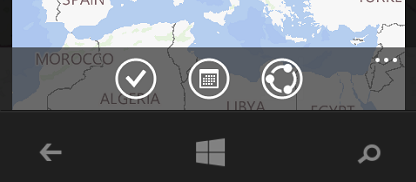
In Windows Phone 7, 8 and 8.1 Silverlight apps this is very easy: you just set the Opacity of the Application bar to any value less than 1 as described here, and the app does not reserve space for the app bar – it just displays the bar on top of the main UI like this:
image
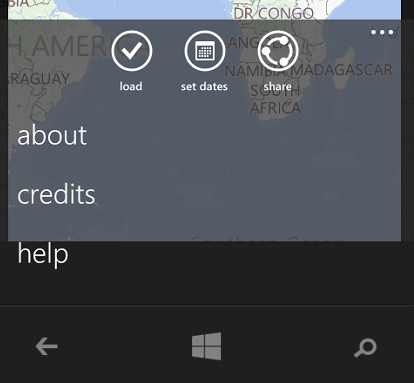
The problem is, if you set the opacity of what is now called the CommandBar in Windows Phone 8.1 Store apps, the Application bar is translucent indeed - which you can see if you open it - but the apps still reserves space for it in it’s closed state:
image
The fix for this is surprisingly easy, but also pretty hard to find if you don’t know what you are looking for. In the end I got a tip by mail from my famous fellow MVP Rudy Huyn. You just add the following, not very obvious line of code to your app. I added it to my App.Xaml.cs, just before the line “Window.Current.Activate();”
 ApplicationView.GetForCurrentView().SetDesiredBoundsMode(
   ApplicationViewBoundsMode.UseCoreWindow);
Right. And then you get what you want (as is displayed in the first image). And once you enter this line of code into a search engine, then you find hits enough, dating back to even April. But well, that did not help me much. Hopefully this simple article will save someone else a fruitless seach ;)
To make this code compile, you will need to add a “using Windows.UI.ViewManagement;” on top of your file. And although it is in fact an article about code, I will skip the sample download app this time – for just one line of code it feels like a bit of overkill.
Update – be aware that not only the Application Bar now falls over the UI, but the status bar on top as well. So you may want to take that into account when designing your UI: keep some extra space at the top, or make in partially translucent as wel. Thanks to my fellow MVP Shawn Kendrot for pointing me to this article that he has written some time ago
author-pic About author
hiiii......, this is ajay, woking as a technical engineer, a tech geek, enjoys ethical hacking

Read More »

0 comments
chuhack
Chinese Jailbreak tool to developer unlock(soft jailbreak) windows phone and sideload 10 XAPs
Updated important info – Only use this tool to hack/unlock the phone. For deploying xap use Windows phone power tools. You might risk your phone warranty(Blacklisted) if you use this tool to deploy xap. since it doesnt link the xap to ur registered email. Use windows phone power tools or xap deployer.
IMPORTANT USE WITH CAUTION & FOLLOW STEPS EXACTLY.
It is unsure whether this tool tracks any user login details or credit card info so be sure not to use any of your card details on your phone after using this tool. We dont recommend this tool but we are posting on request by the users.
HI everyone .
Here is a simple way to developer unlock Windows Phone Devices and get 10 MaxUnsignedApp. you dont need to use any live id or .edu  id. Follow the below steps and you should have a dev unlockeddevice.
Video tutorial:
English :
first thanks to Erfan 33.
Before starting : (Make sure you read the whole post twice to understand the steps)
  1. First unregister your phone if it is already registered for 2 apps – Check Here
  2. Rename the Phone To “Lumia 920″
  3. Check Your Phone and PC Date and make sure they are up to date.
  4. Connect both your phone and your PC to the Internet.
  5. Make sure your Phone screen is On and Pin Unlocked.
  6. Make Sure your Device has been detected (by Device Manager.)
Blue button not working ?
1. Standard USB drivers will not work. you need to install Microsoft windows phone usb drivers
In order to manually update your wp usb driver, follow the steps below (the next steps):
1. Go to Device Manager (right click on My Computer, choose Manage and then find Device Manager in the left panel)
2. Right click on the hardware device you wish to update and choose Update Driver Software
3. Choose to select the location of the new driver manually and browse to the folder where you downloaded the driver
2. Download and install .net Framework 4.5.1
And unregister the phone if you have unlocked it previously – Check Here
Steps to fix errors. Thanks to Dom
I got L720 with 8.1 dev preview installed.
Using windows 8 on my pc
1. I used the old chinese software
2. I installed it as the instruction above.
3. Disable PC from internet. Run it, it will ask for update. then choose NOT.
4. Disable phone from internet, connect it.
5. After it show the blue button, I reconnect BOTH to the internet network
6. Click the blue button
7. Wait for a while
8. I got an error about script or something, but my phone is unlocked for deploy 10 apps.
9. Try unplug your phone and plug it again, if the tool shows your phone colorful now (not grey). it is unlocked.

Now Download Appropriate version of This app to your PC and Install it (it’s Chinese) : 
New Tool (V4.4) (ydisk mirror) : Windows Phone Developer unlock hack tool
 Only use below old version if new is having  issues on your pc
Old Modified Tool v3.0.0.0  : Windows Phone Developer unlock hack tool (Only if above one doesnt work)
Now Click on the file and Install it by this way : 
hack1
After Installing click on x button to close 
hack2
Run this app using Desktop Shortcut . 
You see this page : 
hack3
Click on Blue Button that I mentioned to it .
after a while your phone is developer Unlocked (Max Unsigned App = 10)
Important : Now uninstall the tool completly from your PC and use any registry cleaner to clean out any residue. (Its conflicts with the WPPT sdk files if left on pc)
Now Install Windows phone power tools or XAP deployer 2.0 To Deploy Xap to the device downloaded from our site.
Now you can download install upto 10 XAPs from our site windowsphonehub..
If it doesnt work do not try anything new by yourself. we are not responsible if you break your device. We still recommend you to unlock using .edu mail account.
Note – Use this tool only to unlock the device. For deploying XAP you should still use Windows phone power tools or XAP deployer 2.0
Regards
author-pic About author
hiiii......, this is ajay, woking as a technical engineer, a tech geek, enjoys ethical hacking

Read More »